The hatching time and breeding time per dragon is the same. If you breed two dragons together, the time it will take to breed will be the time taken for the resulting egg to hatch. For example, if you breed a Soccer Dragon (which has a time of 12 hours) with a Cool Fire Dragon (time of 4 hours) and get a legendary dragon, the breeding time will be 48 hours as Legendary's hatching time is 48 hours. But if you get a fire dragon, the breeding time would be 30 seconds, as Fire's hatching time is 30 seconds.
This is a list of the time of each dragon from lowest to highest.
Rare Dragon / Legendary Dragon / Pure or Pure Element Dragon
Terra (15 Seconds)
Flame (30 Seconds)
Sea (5 Minutes)
Flaming rock (30 Minutes)
1 Hour
Vulcano
2 Hours
Blizzard
4 Hours
Waterfall
6 Hours
Cloud
Mud
Nenufar
8 Hours
Cactus
Star
10 Hours
Nature
Electric
Metal
Firebird
Lantern Fish
Spicy
Tropical
Gummy
12 Hours
Ice
Dark
Battery
Chameleon
Coral
Dandelion
Dark fire
Gold
Hedgehog
Hot Metal
Ice Cream
Icecube
Laser
Medieval
Mercury
Mojito
Moose
Neon
Platinum
Rattlesnake
Seashell
Snowflake
Storm
Venom
Zombie
Armadillo
Cool Fire
Soccer
15 Hours
Penguin
Pirate
Poo
16 Hours
Alpine
Carnivore
Dragonfly
Fluoresent
Jade
Vampire
Pearl
Steampunk
Petroleum
48 Hours
Wind / Legendary / Crystal / Mirror
Pure / Pure Terra / Pure Flame / Pure Sea / Pure Nature
Pure Electric / Pure Ice / Pure Metal / Pure Dark
Wednesday, April 17, 2013

Saturday, February 9, 2013
Cara Jailbreak Untethered iOS 6 Dengan eVasi0n Di Windows & Mac OS
Cara Jailbreak Untethered iOS 6 Dengan eVasi0n Di Windows Dan Mac OS X
Sedikit info tentang evasi0n sejauh ini sudah di download oleh lebih dari 1 juta 700 ribu download (saat posting ini saya tulis) tentu kesananya akan semakin banyak yang download.
Nah sebelum anda putuskan untuk download maka ketahui dulu bagaimana jailbreak dengan eVasi0n. Agar nantinya kamu bisa menampilkan Cydia berserta paketnya di iPhone, iPad dan iPod Touch kamu.
Oh iya tool jailbreak ini mendukung perangkat A4, A5, A5X, silahkan dilihat model-model iPhone yang ia dukung.
- iPhone 5, iPhone 4s, iPhone 4, iPhone 3GS.
- iPad 4, iPad 3, iPad 2 dan juga iPad Mini.
- iPod touch 5G dan iPod Touch 4G.
Ingat! Bahwa iPhone, iPad atau iPod Touch kamu harus gunakan iOS 6 keatas, jika versi iOs kamu dibawah versi 6 maka silahkan upgrade.
Cara Untethered iOS 6 jailbreak dengan eVasi0n untuk Windows dan Mac OS X
Langkah 1: Download evasi0n untuk Mac dan Windows.Langkah 2: Sekarang ekstrak file downloadnya di Dekstop kemudian buka folder evasi0n. Klik-kanan evasion.exe (untuk Windows maka run as Administrator). Jika window User Access Control muncul, maka pilih Yes.
Langkah 3: Pastikan passcode di non-aktifkan, jika aktif. Untuk non-aktifkan passcode, maka ke Settings > General > Passcode Lock > dan pilih Passcode OFF.
Langkah 4: Konek iPhone ke PC. Ingat bahwa evasi0n akan jailbreak semua perangkat iOS kecuali Apple TV.
Langkah 5: Evasi0n akan mendeteksi iPhone, iPad atau iPod Touch kamu. Setelah perangkatmu dideteksi, tombol jailbreak akan aktif bisa klik..
Langkah 6: Untuk memulai proses jailbreak, maka klik tombol Jailbreak.
Langkah 7: Evasi0n akan melakukan sejumlah langkah. Salah satunya, menyiapkan jailbreak data, reboot perangkatmu, upload Cydia, injeksi data jailbrea, upload paket Cydia. Proses ini bisa lama. Maka tunggu dengan santai, disaat evasi0n melakukan tugasnya.

Langkah 8: Evasi0n kini meminta anda untuk unlock iPhone, iPad atau iPod Touch. Pada lock screen, maka pilih slide to unlock, kamu akan melihat sebuah icon aplikasi baru di halaman kedua Home screen bernama Jailbreak. Maka tap icon aplikasi Jailbreak sekali (pastikan hanya tap sekali), dan maka layar akan berubah hitam dan kembali ke Home Screen dengan segera. Lagi, pastikan kamu hanya tap sekali pada icon Jailbreak.
Langkah 9: Evasi0n akan terus menampilkan pesan seperti injeksi data jailbreak, dan root filesystem dengan sukses remounted. Maka iPhone, iPod Touch dan iPad akan reboot, mungkin lebih dari sekali. Reboot pertama akan lebih lama dibanding biasanya, sekali lagi, bersabarlah saat proses ini terjadi. Lagi, bersabar dan jangan sentuh apapun.
Langkah 10: Setelah proses jailbreak selesai, evasi0n akan memberikan pesan DONE. Kamu harus melihat sebuah logo evasi0n besar di layar iPhone kamu. Ia akan tampil sekali atau dua-kali dengan cepat. Akhirnya kamu akan dibawa ke Lock screen. Disana, kamu akan dapa slide to unlock iPhone, iPad dan iPod Touch dan kamu akan melihat icon Cydia pada Home Screen di home kedua kamu.
Thursday, February 7, 2013
IPSW Compatibility Check
|
Checking IPSW Yang Cocok Dengan Device :
iPhone 5
iPhone 4
iPad mini
iPod touch 4th-generation (iPod 4) - iPod4,1 iPod touch 5th-generation (iPod 5) - iPod5,1 |
Friday, August 24, 2012
BLACKBERRY PHONE UNLOCK PROCEDURE
Blackberry 8120
PHONE UNLOCK PROCEDURE
PLEASE READ THE INSTRUCTIONS CAREFULLY BEFORE YOU ATTEMPT
ANY UNLOCK PROCESS
This procedure unlocks the handset from being network
restricted from only using SIM cards from Vodafone Australia. In case of
difficulties, please refer to the FAQ listed below:
1. Take note of
the unlocking code shown above
2. Insert a
Non-Vodafone Australia working SIM card.
3. Ensure the
phone is charged and then switch the phone on.
4. Optional Step: If the SIM card has a
PIN, enter your PIN number. (See FAQ below)
5. The phone will then display a message.
The most common is “Invalid SIM card”. (Different message? See FAQ below)
6. Wireless can
be On or Off on the handset.
7. Click
“Settings” icons, then go to Advanced
Options > SIM Card
8. While
holding the <alt> button, type “M”, “E” “O”,
“O”, “T”.
9. When prompted with “Enter Network MEP
code (255 left)” on the screen, enter the 16-digit network unlock code provided
for your phone, then press Enter.
(Unlocking code is shown above)
10. A prompt will
appear stating “Code Accepted”
11. Reset the
phone by removing the battery.
12. Replace the battery and switch the phone
on and the handset will be unlocked automatically. This will be confirmed if you
can make and receive calls with the Non-Vodafone Australia SIM card. (You will
need reception and phone credit with the different network provider)
Please Note:
If the unlocking code is entered incorrectly the next
attempt to unlock the device will be delayed for 10 seconds increments. The
number of unlocking attempts is limited to 255 tries only. When 255 attempts is
reached the phone will be permanently blocked.
To unblock the phone, it must be taken to a RIM service
centre. No outgoing calls including emergency call is possible when the phone
is blocked.
Wednesday, August 22, 2012
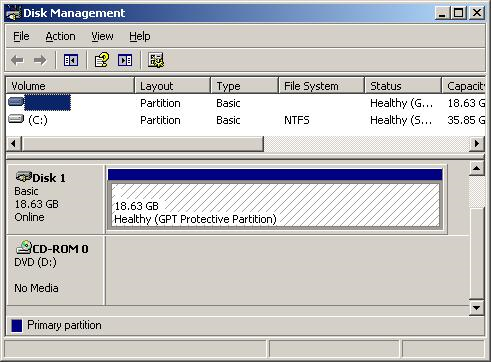
How to delete GPT Protective Partition
Why we need to delete GPT protective partition?
In Windows XP Professional, you cannot access or modify GPT disk, but you can convert a GPT disk to MBR by using the clean command in DiskPart, which will delete GPT protective partition and remove all data and partition structures from the disk.
Warning: The steps below will erase all data on the GPT disk, please backup your data first.
- You might see HD Drive in GPT status on Disk Management.
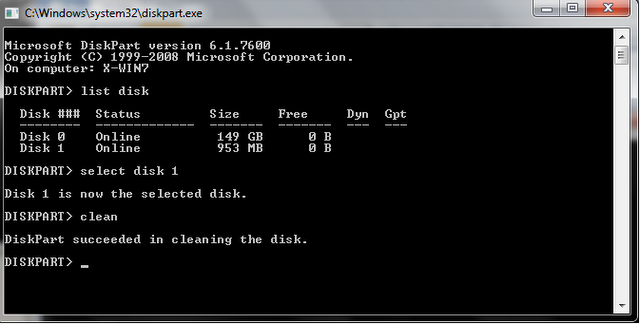
- Go to DOS command line (click on "Start Menu", then "Run", type in "cmd" in textbox, and hit "OK")
- Type in "DiskPart" in command line.
- Type in "list disk" in command line to show all disks in this machine.
- Use "select" to set the focus to the specified partition.
For example "select disk 1". - Use "clean" command to remove GPT disk from the current in-focus disk by zeroing sectors.
- Go back to Disk Management, you can see GPT disk is "Not Initialized" now.
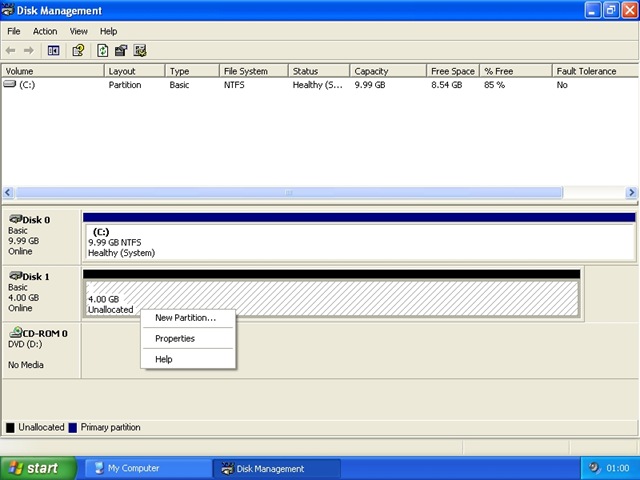
- Within Disk Management, right click on disk info, choose "Initialize Disk", You can see GPT disk is "Unallocated" now.
- Right click on disk info, choose "New Partition…", follow Partition Wizard and format it. Now you are able to use the disk in Windows XP.

Wednesday, May 9, 2012
JVM Error 102 on your BlackBerry? Try this solution BEFORE wiping!

JVM Error 102 on your BlackBerry? Try this solution BEFORE wiping!
by
 on 16 Sep 2011 12:48 PM
 on 16 Sep 2011 12:48 PM
75

Basically the error message 102 is a .cod file that has been corrupted. Your BlackBerry, being the smart phone that it is (pun intended), refuses to load the corrupted file. To possibly, and I do mean possibly since this option may not always work, you will need JL_Cmder installed on your computer (grab a copy here and install it . Make sure you install it into the Program Files on your C: drive. Make a mental note of whatever you saved it as since you will need the exact name you gave it), a USB cable and of course your seemingly lifeless BlackBerry.
Step 1
Connect your BlackBerry to your computer with the USB cable.Step 2

Step 3
Scroll to the bottom of the log and look for "JVM Error 102." The line before it should tell you exactly what file is causing the error. It might look something like this. Save/write down the file name somewhere; you will need it later.Step 4
On your computer, go to Start > Run, and type "cmd" then press the enter key.Step 5
Change the directory to the JL_Cmder installation folder by typing the following:cd "C:\Program Files\JL_Cmder\" and press the enter key. If you named your JL_Cmder anything else (mine is JL_Cmder v1.9.0, here is where you may need to type more into the command like this: cd "C:\Program Files\JL_Cmder v1.9.0\")
Step 6
Type the following command to remove the corrupted file:javaloader.exe -u erase -f FILENAME
Where FILENAME is, type the name of the .cod file I told you to save or write down. Press the enter key.
Step 7
Disconnect your phone from your PC and restart it. Presto! Your BlackBerry should boot up like normal and you can then go make a backup in case it happens again.Mine seems to have fixed itself and is running great. The only thing I noticed after the reboot was my BBM icon was missing. According to the device the application was still on there but I couldn't locate it. I reinstalled and everything is golden now. Hope this helps some of you out like it did me.
Monday, November 14, 2011
Mama: Itu Kado Terindah Anakku

Atlet tembak Indonesia, Ardy Maharani berpose usai mengikuti final 50 m Rifle Prone Putri Perorangan SEA Games XXVI, di Shooting Range, Jakabaring Sport Centre, Palembang, Sumsel, Senin (14/11).
Mama: Itu Kado Terindah Anakku
Hari ulang tahun yang ke-25 menjadi saat yang spesial bagi atlet nasional, Maharani Ardy. Di seperempat abad usianya, Maharani berhasil meraih medali emas pertamanya di ajang SEA Games.“Ini untuk orang tua Reni (panggilan Maharani),” katanya seusai pertandingan di venue Shooting Range Jakabaring Sport City, Palembang, Senin (14/11).
Suasana bahagia bercampur tangis setelah papan skor memastikan atlet asal Palembang itu meraih poin tertinggi. Turun di nomor 50 meter prone putri, ia berhasil meraih 593 poin.
Suasana tegang sempat terjadi saat atlet unggulan Indonesia justru kurang tampil maksimal. Erlinawati hanya bisa meraih posisi keenam dengan raihan 586. Peraih medali emas SEA Games 2009 Laos itu mendahului Reni dalam menyelesaikan pertandingan. Di papan skor, Vitchuda Pichitkanjanakul asal Thailand masih memimpin pertandingan dengan 592 poin.
Doa Ibu
“Mama (Ibu) nggak mau liat papan skor. Hanya di dalam hati bilang,'Ayo dek! tembak nomor sepuluh.',” kata Ira Sukardi, ibunda Reni, yang hadir untuk mendukung putrinya bertanding.
Selama pertandingan, Ira merasa sangat tegang melihat penampilan anaknya. Hanya Dwi, keponakan Reni, yang sibuk memberitahu perkembangan nilai pada dirinya.
Di dalam hatinya, Ira selalu berdoa untuk keberhasilan putri bungsungnya itu. Terlebih, hari pertandingan berlangsung bertepatan dengan kelahiran anak ketiga dari tiga bersaudara itu.
Menurutnya, rasa tegang terus terasa mendengar poin per poin yang dihasilkan Reni. Hingga akhirnya, si bungsu keluar menjadi juara setelah unggul satu poin atas saingan terdekatnya. “Itu kado terindah untuk anakku,” ujarnya yang datang bersama suaminya, Sukardi.
Rasa haru sekaligus bangga muncul seusai Reni memastikan gelar juara. Orang-orang terdekatnya memberikan pelukan dan atlet asal Sumatera Selatan itu menangis. Nyanyian selamat ulang tahun mengiringi kemenangan Reni di arena menembak. Ia pun mengucap doa.
“Dalam hati Reni, banyak yang menonton dan mendukung Indonesia. Semoga doa kita semua diijabah, amin,” ujarnya.
Medali emas kali ini seperti membayar keinginan Reni dua tahun lalu. Saat itu, ia hanya meraih hasil medali perak di nomor tim rifle prone. Berlatih di pelatihan nasional selama enam bulan, Reni kini akhirnya bisa meraih hasil kerja kerasnya di tengah dukungan para suporter. “Itu jadi doa dan penyemangat buat Reni,” ujar peraih medali emas di Singapura Open 2009 itu.
Subscribe to:
Posts (Atom)
